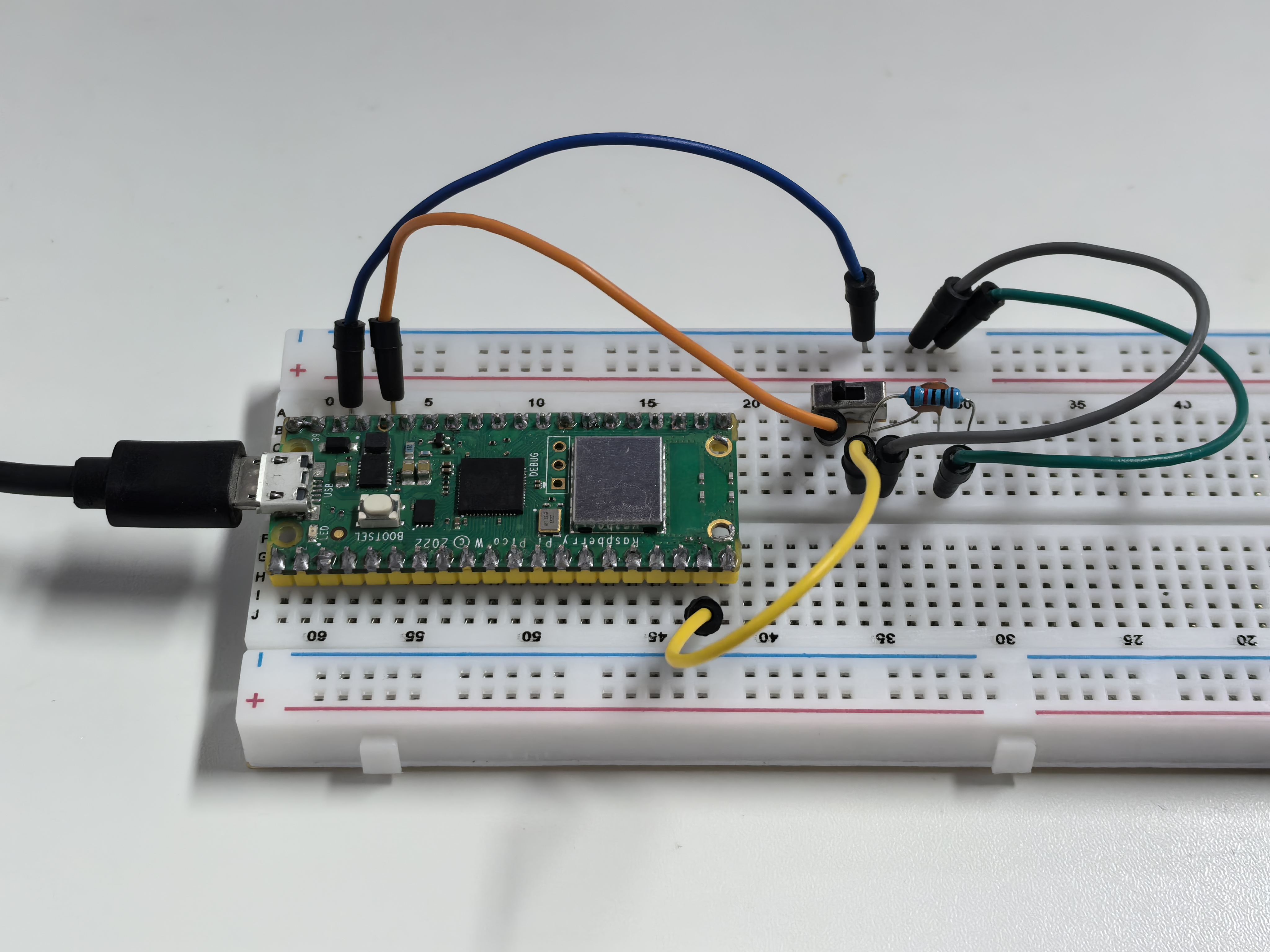
1.7 Slide_Switch
A slide switch is like a railway switch that directs electrical current to different paths! It has three pins: a common middle pin and two output pins. Slide it left or right to change which path the electricity takes.
This type of switch is commonly used for ON/OFF controls, mode selection, or toggling between two states in electronic devices.
Component List
Raspberry Pi Pico W x1
MicroUSB cable x1
830 Tie-Points Breadboard x1
Jumper Wire Several
Slide Switch x1
Resistor 10KΩ x1
Capacitor 104 x1
Component knowledge
Slide Switch
Capacitor
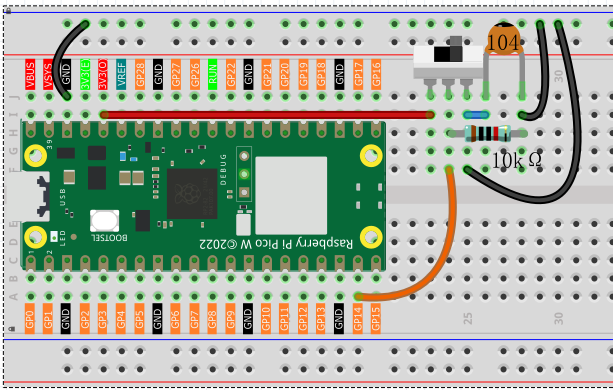
How the slide switch works in our circuit: - Left position: GP14 reads LOW (0V) - Right position: GP14 reads HIGH (3.3V) - Middle position: GP14 stays LOW thanks to the pull-down resistor
The 10KΩ resistor provides a stable LOW when the switch isn’t connected to HIGH, and the 104 capacitor smooths out any electrical noise during switching.
Connect
Code
Note
Open the
1.7_slide_switch.inofile under the path ofUltimate-Starter-Kit-for-Pico-W\Arduino\1.Projector copy this code into Thonny, then click “Run Current Script” or simply press F5 to run it.Or copy this code into Arduino IDE.
Don’t forget to select the board(Raspberry Pi Pico) and the correct port before clicking the Upload button.
After running the code, move the slide switch left and right. The serial monitor will display real-time position updates (HIGH/LOW), toggle counters, and timestamps showing exactly when each switch movement occurred.
The following is the program code:
/*
  Digital Toggle Monitor

  Monitors a slide switch and counts the number of toggles
  while providing real-time status updates.
*/

// Pin definition for the slide switch
const int TOGGLE_PIN = 14;          // slide switch connected to pin 14

// Variables to track switch state and statistics
bool currentPosition = false;       // current switch position (true = HIGH)
bool previousPosition = false;      // previous position for change detection
int toggleCount = 0;                // total number of switch toggles
unsigned long lastToggleTime = 0;   // timestamp of last toggle event

void setup() {
  // Set up the slide switch pin as input
  pinMode(TOGGLE_PIN, INPUT);


  // Start serial communication
  Serial.begin(115200);

  // Show welcome message
  displayWelcomeMessage();

  // Read initial switch position
  previousPosition = digitalRead(TOGGLE_PIN);

  // Show initial status
  reportStatus();
}

void loop() {
  // Monitor the switch for changes
  monitorToggleSwitch();

  // Small delay for stability
  delay(100);
}

// Function to display welcome message and instructions
void displayWelcomeMessage() {
  Serial.println("=== Digital Toggle Monitor ===");
  Serial.println("Move the switch to see position changes");
  Serial.println("Toggle counter will track all movements");
  Serial.println("--------------------------------");
}

// Function to check for switch position changes
void monitorToggleSwitch() {
  // Read current switch position
  currentPosition = digitalRead(TOGGLE_PIN);

  // Check if position has changed
  if (currentPosition != previousPosition) {
    // Increment toggle counter
    toggleCount++;

    // Record the time of this toggle
    lastToggleTime = millis();

    // Display updated status
    reportStatus();

    // Update previous position for next comparison
    previousPosition = currentPosition;
  }
}

// Function to display current switch status and statistics
void reportStatus() {
  // Show digital value (HIGH/LOW)
  Serial.print("Position: ");
  Serial.print(currentPosition ? "HIGH" : "LOW");

  // Show logical state (ON/OFF)
  Serial.print(" | State: ");
  Serial.print(currentPosition ? "ON " : "OFF");

  // Show total toggle count
  Serial.print(" | Toggles: ");
  Serial.println(toggleCount);

  // Show timestamp of last change (if any toggles occurred)
  if (toggleCount > 0) {
    Serial.print("Last change: ");
    Serial.print(lastToggleTime);
    Serial.println(" ms");
  }

  // Add separator line for readability
  Serial.println("---");
}
Phenomenon