1.1 LED_Blink (Important)
This chapter is the Start Point in the journey to build and explore Raspberry Pi Pico electronic projects. We will start with simple “Blink” project.
In this project, we will use Pico to control blinking a common LED.
Power Pico needs 5v power supply. In this tutorial, we need connect Pico to computer via USB cable to power it and program it.
Component List
Raspberry Pi Pico W x1
MicroUSB cable x1
830 Tie-Points Breadboard x1
LED x1
Resistor 220Ω x1
Jumper Wire Several
Component knowledge
LED
Resistor
Breadboard
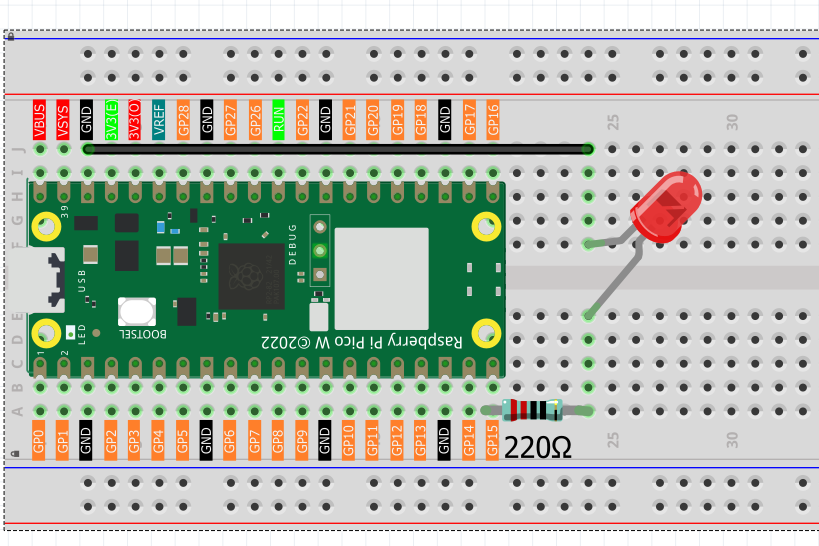
This circuit works on a simple principle, and the current direction is shown in the figure. The LED will light up after the 220ohm current limiting resistor when GP15 outputs high level (3.3v). The LED will turn off when GP15 outputs low level (0v).
Connect
Code
Note
Open the
1.1_led_blink.inofile under the path ofUltimate-Starter-Kit-for-Pico-W\Arduino\1.Projector copy this code into Thonny, then click “Run Current Script” or simply press F5 to run it.Or copy this code into Arduino IDE.
Don’t forget to select the board(Raspberry Pi Pico) and the correct port before clicking the Upload button.
After running the code, you will see the LED light up for 200 milliseconds and then turn off for 200 milliseconds.
If you want to stop the code, you can click the stop button in the IDE or press Ctrl+C in the shell area.
The following is the program code:
/*
  Blink

  Turns an LED on for one second, then off for one second, repeatedly.

  This example uses GPIO 15 for the LED connection on Raspberry Pi Pico.
  Connect the LED with a 220 ohm resistor in series.
*/

// Pin 15 has the LED connected
const int led = 15;

// the setup function runs once when you press reset or power the board
void setup() {
  // initialize the digital pin as an output.
  pinMode(led, OUTPUT);
}

// the loop function runs over and over again forever
void loop() {
  digitalWrite(led, HIGH);   // turn the LED on (HIGH is the voltage level)
  delay(1000);               // wait for a second
  digitalWrite(led, LOW);    // turn the LED off by making the voltage LOW
  delay(1000);               // wait for a second
}