1.5 RGB Light Effects
Now let’s explore RGB LEDs! An RGB LED contains three tiny LEDs (Red, Green, Blue) in one package. By mixing different brightness levels of these three colors, we can create millions of different colors.
Random Color Light
In this project, we’ll make an RGB LED automatically change to random colors, creating a colorful light show!
Component List
Raspberry Pi Pico W x1
830 Tie-Points Breadboard x1
LED-RGB x1
Resistor 220Ω x3
Jumper Wire Several
We use PWM (Pulse Width Modulation) to control brightness: - GP13 controls the Red LED - GP14 controls the Green LED - GP15 controls the Blue LED
By changing the PWM values (0-255), we can mix different amounts of red, green, and blue light to create any color we want!
Component knowledge
RGB-LED
Connect
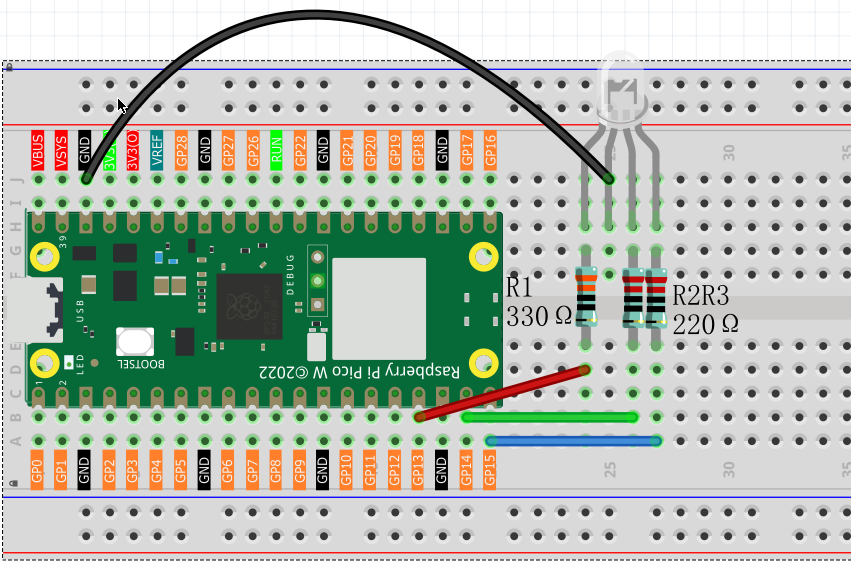
Code
Note
Open the
1.5_rgb_light_effects.inofile under the path ofUltimate-Starter-Kit-for-Pico-W\Arduino\1.Projector copy this code into Thonny, then click “Run Current Script” or simply press F5 to run it.Or copy this code into Arduino IDE.
Don’t forget to select the board(Raspberry Pi Pico) and the correct port before clicking the Upload button.
RandomColorLight
After running the code, the RGB LED will continuously change colors randomly, creating a beautiful rainbow effect.
The following is the program code:
/*

  Creates a smooth color transition effect using an RGB LED.
  Demonstrates color mixing and fading techniques.
*/

// RGB LED connections
int redPin = 13;
int greenPin = 14;
int bluePin = 15;

// Color values
int redValue = 0;
int greenValue = 0;
int blueValue = 0;

void setup() {
  pinMode(redPin, OUTPUT);
  pinMode(greenPin, OUTPUT);
  pinMode(bluePin, OUTPUT);
}

void loop() {
  // Cycle through color spectrum
  colorSpectrum();

  // Flash primary colors
  flashColors();

  // Breathing effect with different colors
  breathingEffect();
}

void colorSpectrum() {
  // Red to Yellow (increase green)
  for (int i = 0; i <= 255; i += 5) {
    analogWrite(redPin, 255);
    analogWrite(greenPin, i);
    analogWrite(bluePin, 0);
    delay(20);
  }

  // Yellow to Green (decrease red)
  for (int i = 255; i >= 0; i -= 5) {
    analogWrite(redPin, i);
    analogWrite(greenPin, 255);
    analogWrite(bluePin, 0);
    delay(20);
  }

  // Green to Cyan (increase blue)
  for (int i = 0; i <= 255; i += 5) {
    analogWrite(redPin, 0);
    analogWrite(greenPin, 255);
    analogWrite(bluePin, i);
    delay(20);
  }

  // Turn off
  analogWrite(redPin, 0);
  analogWrite(greenPin, 0);
  analogWrite(bluePin, 0);
  delay(500);
}

void flashColors() {
  // Quick color flashes
  int colors[][3] = {
    {255, 0, 0},    // Red
    {0, 255, 0},    // Green
    {0, 0, 255},    // Blue
    {255, 255, 0},  // Yellow
    {255, 0, 255},  // Magenta
    {0, 255, 255}   // Cyan
  };

  for (int i = 0; i < 6; i++) {
    analogWrite(redPin, colors[i][0]);
    analogWrite(greenPin, colors[i][1]);
    analogWrite(bluePin, colors[i][2]);
    delay(300);

    // Brief off
    analogWrite(redPin, 0);
    analogWrite(greenPin, 0);
    analogWrite(bluePin, 0);
    delay(100);
  }
}

void breathingEffect() {
  // Purple breathing
  for (int brightness = 0; brightness <= 255; brightness += 3) {
    analogWrite(redPin, brightness);
    analogWrite(greenPin, 0);
    analogWrite(bluePin, brightness);
    delay(10);
  }

  for (int brightness = 255; brightness >= 0; brightness -= 3) {
    analogWrite(redPin, brightness);
    analogWrite(greenPin, 0);
    analogWrite(bluePin, brightness);
    delay(10);
  }

  delay(300);
}