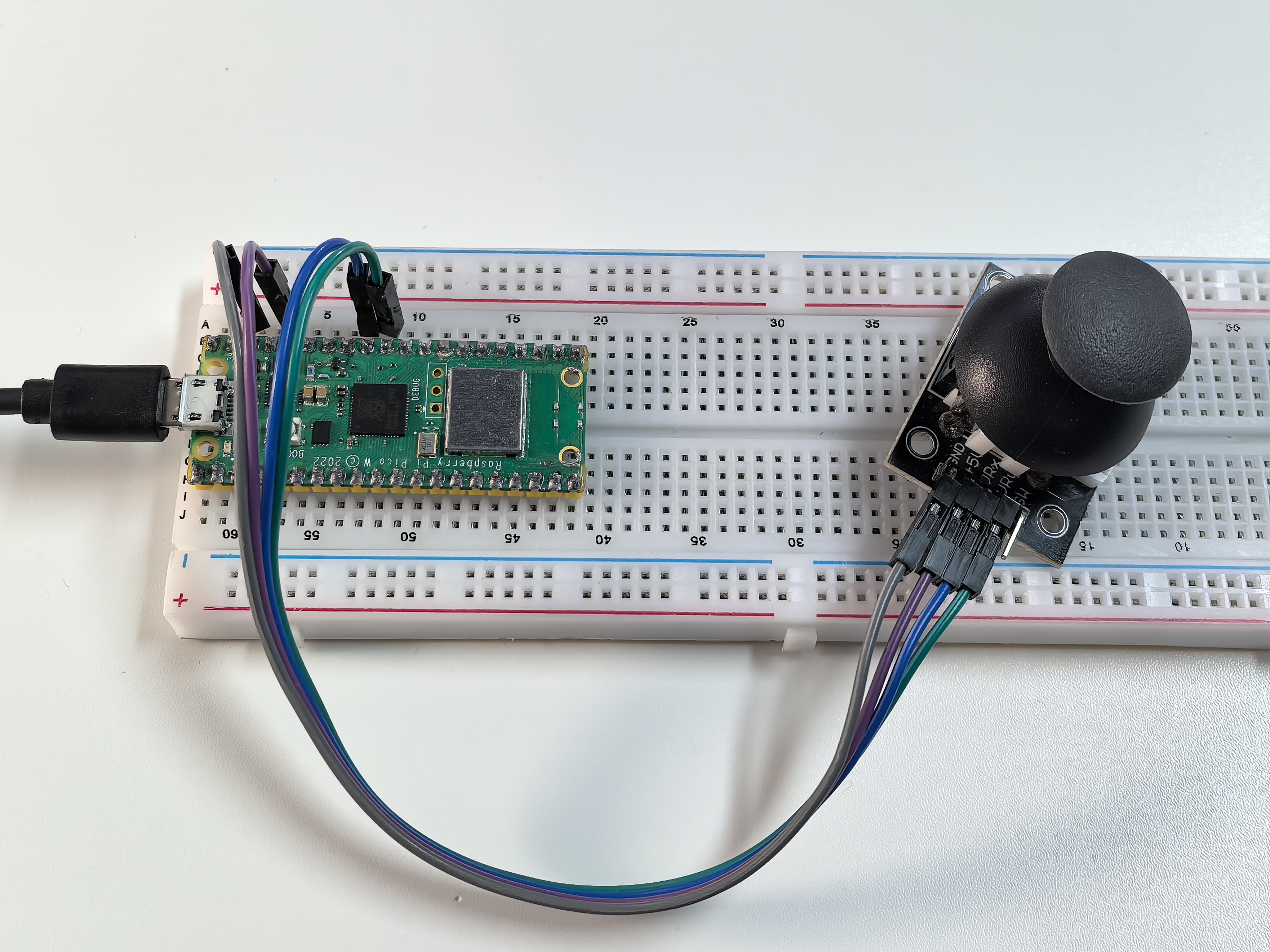
3.1 Joystick
Welcome to 2D control! A joystick is like having a mouse that can move in all directions - perfect for gaming, robot control, camera gimbals, or any project needing precise directional input.
How it works: Inside the joystick are two potentiometers positioned at 90° to each other. As you move the stick, these potentiometers change resistance, giving us X and Y coordinates (0-65535 in each direction). Plus there’s a hidden bonus - push down on the stick and it becomes a button!
Think of it as a “digital compass” that tells your Pico exactly where you’re pointing and whether you’re pressing down.
Component List
Raspberry Pi Pico W x1
MicroUSB cable x1
830 Tie-Points Breadboard x1
Joystick Module x1
Jumper Wire Several
10kΩ Resistor x1
Component knowledge
Joystick Module
Connect
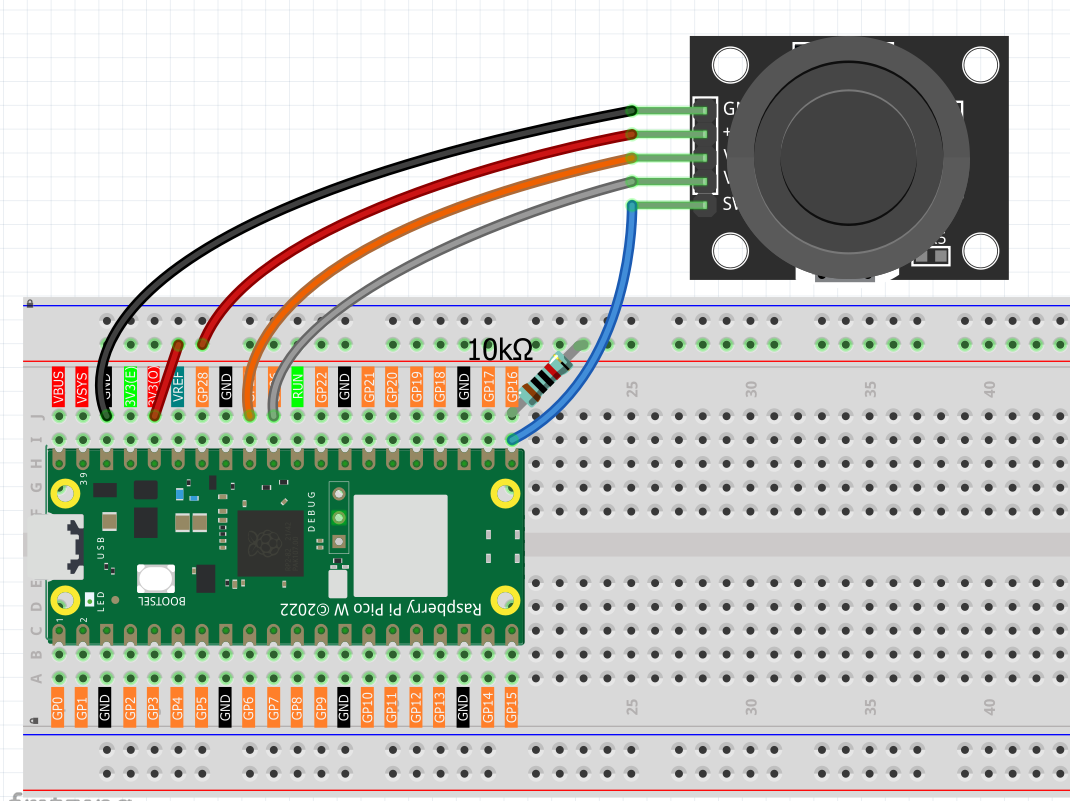
Code
Note
Open the
3.1_joystick.pyfile under the path ofUltimate-Starter-Kit-for-Pico-W\Python\1.Projector copy this code into Thonny, then click “Run Current Script” or simply press F5 to run it.Don’t forget to click on the “MicroPython (Raspberry Pi Pico)” interpreter in the bottom right corner.
After running the code, move the joystick around and watch the live coordinate tracking! The serial monitor shows real-time X/Y values (0-65535) and button state (0/1). The Y-axis is inverted for intuitive control - up = higher values, down = lower values. Try moving in circles, pressing the button, or holding positions to see how responsive the readings are!
The following is the program code:
"""
Analog Joystick Control Project

This project reads X and Y axis positions from an analog joystick
and the state of the built-in button. The Y-axis and button values
are inverted for more intuitive control behavior.

Hardware Requirements:
- Raspberry Pi Pico or compatible board
- Analog joystick module (with X, Y, and SW pins)
- Serial monitor for output display
"""

# Import required libraries
import machine  # For hardware control (ADC, Pin)
import utime    # For time delays

# Hardware Configuration Constants
JOYSTICK_X_PIN = 27             # Joystick X-axis analog pin (VRX)
JOYSTICK_Y_PIN = 26             # Joystick Y-axis analog pin (VRY)
JOYSTICK_BUTTON_PIN = 16        # Joystick button digital pin (SW)

# Analog Reading Constants
ANALOG_MIN_VALUE = 0            # Minimum analog reading value
ANALOG_MAX_VALUE = 65535        # Maximum analog reading value (16-bit ADC)
READING_DELAY_MS = 100          # Delay between readings (milliseconds)

# Button States
BUTTON_PRESSED = 0              # Active button state (pulled down when pressed)
BUTTON_RELEASED = 1             # Inactive button state (pulled up when released)

# Initialize joystick components
x_joystick = machine.ADC(JOYSTICK_X_PIN)
y_joystick = machine.ADC(JOYSTICK_Y_PIN)
joystick_button = machine.Pin(JOYSTICK_BUTTON_PIN, machine.Pin.IN, machine.Pin.PULL_UP)

def read_x_axis():
    """
    Read X-Axis Value

    Reads the X-axis analog value without any inversion.

    Returns:
        Raw X-axis value (0-65535)
    """
    return x_joystick.read_u16()

def read_y_axis_inverted():
    """
    Read Y-Axis Value (Inverted)

    Reads the Y-axis analog value and inverts it for more
    intuitive control (up = higher value, down = lower value).

    Returns:
        Inverted Y-axis value (0-65535)
    """
    raw_value = y_joystick.read_u16()
    # Invert the Y-axis: 65535 - raw_value
    return ANALOG_MAX_VALUE - raw_value

def read_button_inverted():
    """
    Read Button State (Inverted)

    Reads the button state and inverts it for logical output
    (1 = pressed, 0 = released instead of hardware LOW/HIGH).

    Returns:
        Inverted button state (1 = pressed, 0 = released)
    """
    raw_button_state = joystick_button.value()
    # Invert the button: pressed (LOW/0) becomes 1, released (HIGH/1) becomes 0
    return 1 if raw_button_state == BUTTON_PRESSED else 0

def display_joystick_values():
    """
    Display Joystick Values

    Reads all joystick inputs and displays them with appropriate
    inversions for Y-axis and button state.
    """
    # Read raw joystick values
    x_value = read_x_axis()
    y_value = read_y_axis_inverted()
    button_state = read_button_inverted()

    # Display formatted output
    print(f"X: {x_value} | Y: {y_value} | Button: {button_state}")

def setup_joystick():
    """
    Initialize the joystick control system

    Sets up joystick pins and displays startup information.
    """
    print("=== Joystick Controller Initialized ===")
    print("Format: X: value | Y: value | Button: state")
    print("Y-axis inverted, Button inverted for intuitive control")
    print(f"X-axis pin: {JOYSTICK_X_PIN}")
    print(f"Y-axis pin: {JOYSTICK_Y_PIN}")
    print(f"Button pin: {JOYSTICK_BUTTON_PIN}")
    print("======================================")

def main():
    """
    Main function that runs the joystick monitoring
    """
    # Setup the joystick system
    setup_joystick()

    try:
        print("Starting joystick monitoring...")
        print("Press Ctrl+C to stop")
        print()

        # Continuous joystick monitoring loop
        while True:
            # Read and display joystick values
            display_joystick_values()

            # Wait before next reading
            utime.sleep_ms(READING_DELAY_MS)

    except KeyboardInterrupt:
        print("\nJoystick monitoring stopped by user")
        print("Joystick controller deactivated")

# Run the program
if __name__ == "__main__":
    main()
Phenomenon